🏢 Companies: Manage and Access Dimensioner Groups
As an account user, you can create and manage multiple companies under your account. This lets you organize dimensioners and users by location, contract, or business unit.
🗂 Companies Overview
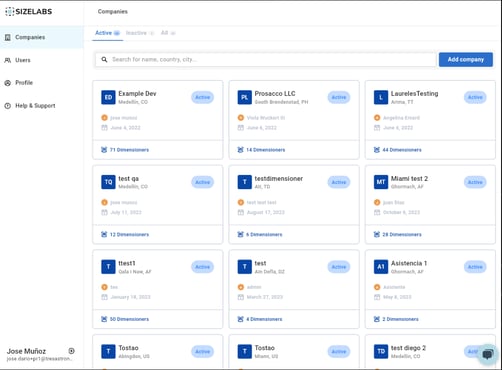
When you open the Companies section, you will see all companies associated with your account user. You can:
-
Filter by Active, Inactive, or All.
-
Use the search bar to find companies by name, country, or city.
🆕 Add a Company
Click the Add company button to register a new company. The system will guide you through the following steps:
-
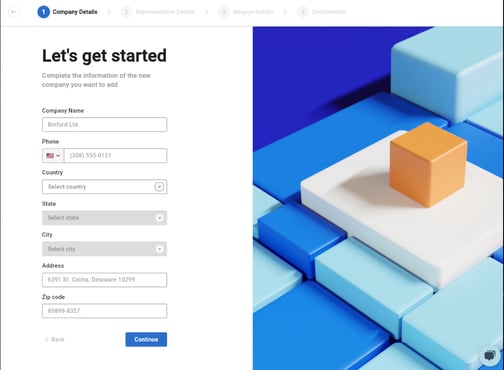
Company information: name, phone, country, state, city, address, zip code.
-
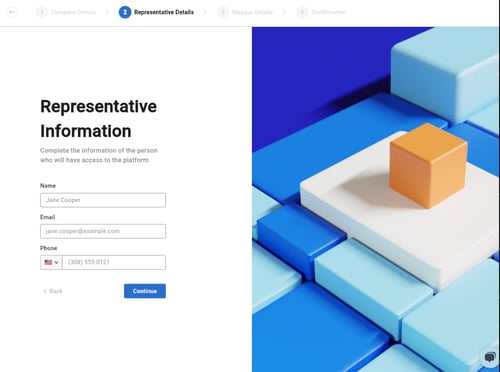
Representative details: name, email, phone.
-
WMS integration details (optional).
-
Confirmation screen.
🔍 Company Detail View
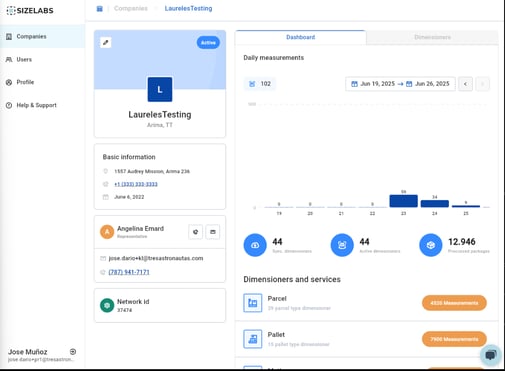
Clicking on any company opens its dashboard, where you can see:
-
Basic info: address, contact, representative, and Network ID.
-
Daily measurements graph.
-
Count of synced, active dimensioners and total processed packages.
-
A breakdown of dimensioners by type: Parcel, Pallet, Move.
📦 Manage Company Dimensioners
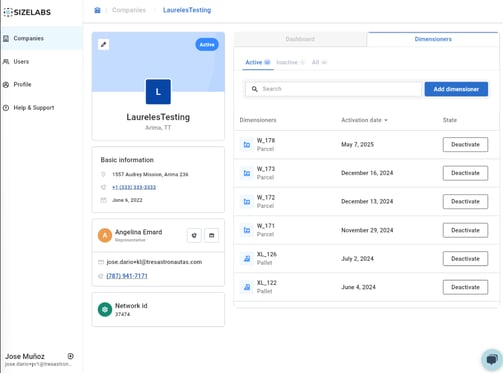
In the Dimensioners tab inside the company, you can:
-
Add a new dimensioner.
-
See activation dates and toggle device status (Activate/Deactivate).
-
Click any dimensioner to access its detail page.
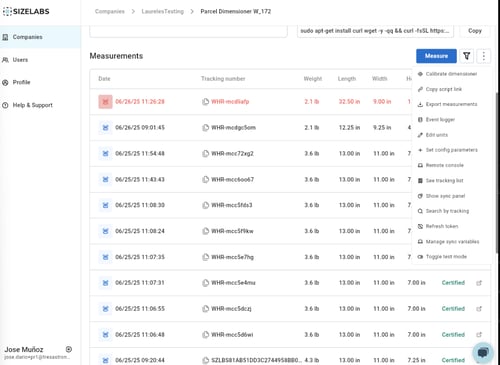
📏 Inside Dimensioner Detail
From a dimensioner’s detail page, you can:
-
View and filter measurements by date.
-
Copy the script to install a new dimensioner.
-
Access key tools from the action menu, including:
-
Calibrate
-
Export measurements
-
Remote console
-
Sync variable manager
-
Tracking search
-
Toggle test mode
-
Edit units and parameters
-