
The My Company section is your hub to manage your company's basic data, oversee your dimensioners, and interact with device-specific measurement information.
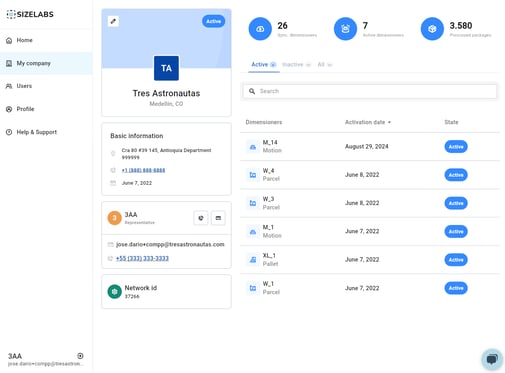
📲 Company Overview Panel
At the top, you’ll see:
-
Your company name and location.
-
Status (Active/Inactive).
-
Basic information: address, contact phone, registration date.
-
The representative listed for the company.
This is purely informative and is not where actions are performed.
🛠 Dimensioners View
To the right, you will see the full list of dimensioners synced to your company. This includes:
-
Active dimensioners (blue badge)
-
Inactive dimensioners
-
All dimensioners (full list)
You can toggle between views using the tabs labeled Active, Inactive, and All.
A search bar is available to look up a specific dimensioner by its ID.
🔍 Tip: Start typing the ID or prefix (e.g., "W_" or "M_") to filter faster.
🔍 Accessing a Dimensioner
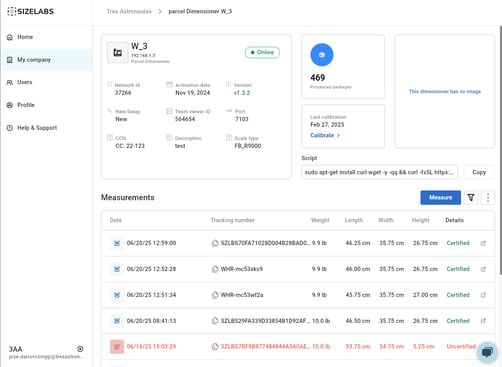
Click on any dimensioner in the list to open its detail view. Here you can:
-
See network details, version, activation date, team viewer ID, and port.
-
View how many packages the device has processed.
-
Check the last calibration date.
-
View or edit technical descriptions.
-
View historical measurements taken with the device.
📃 Measurement Logs
Each dimensioner includes a full log of past measurements:
-
Displays tracking ID, weight, dimensions, and certification status.
-
You can filter by date range.
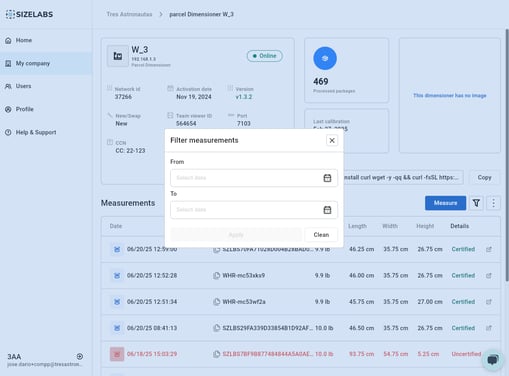
🔍 Use the filter icon to define a time window, or the search field to locate specific shipments.
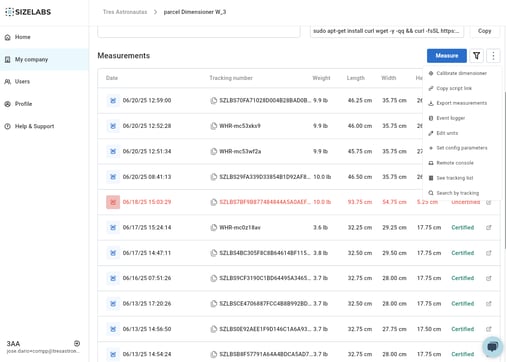
You can also export measurements for audits or operations reporting.
⚖️ Measurement Action
The most critical feature in this view is the ability to perform a new measurement directly from the dimensioner detail screen.
-
Click the Measure button.
-
Enter or scan the Tracking ID.
-
The system captures dimensions and weight automatically.
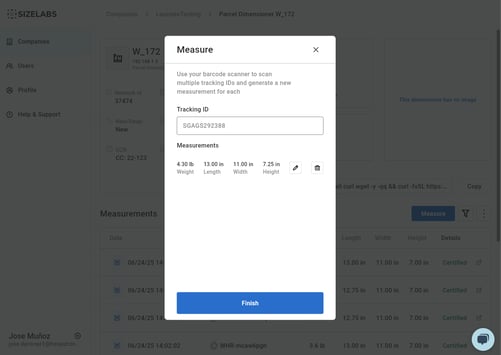
🔊 Note: Measurements appear instantly in the table below once saved.
This section helps you keep control of your entire operation: monitor devices, filter historical data, perform new captures, and export what you need. All from one place.