
The Users section allows you to manage all users registered under your company account. You can filter, search, view, edit, deactivate, and add users of different roles.
📋 Viewing Current Users
The user list is shown in a table format and includes:
-
Name
-
Email
-
Phone
-
State (Active or Inactive)
-
Role (Company or Operator)
You can filter users by:
-
Active -
Inactive -
All
And search by name, email, or city using the search bar at the top.
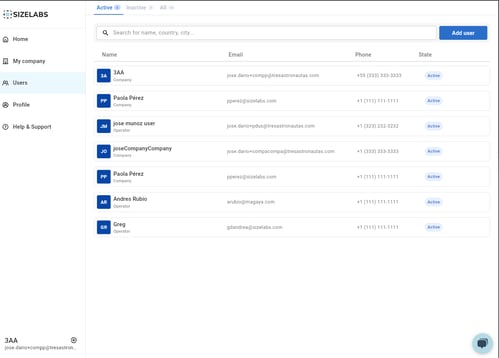
Caption: List of all users with filters for Active, Inactive, and All, plus a search tool.
🔍 Viewing a User’s Details
Click on a user to see their profile. The detail view shows:
-
Name
-
Status
-
Role
-
Phone
-
Email
-
Gender (if registered)
You also have the option to:
-
Edit user info
-
Deactivate user account
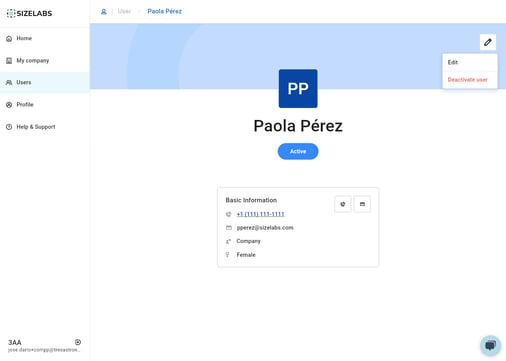
Caption: User profile panel with access to edit or deactivate actions.
✏️ Editing a User
Once you click Edit, you can update the following fields:
-
Name
-
Phone number
-
Role (Company or Operator)
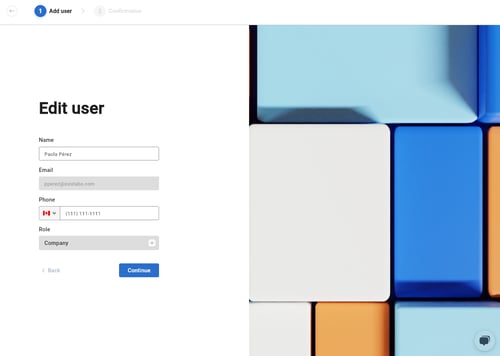
Caption: Editing form with name, role, and phone number fields.
➕ Adding a New User
Click on Add user to register someone new.
You will be asked to fill out:
-
Name
-
Gender
-
Email
-
Phone number
-
Role (Company or Operator)
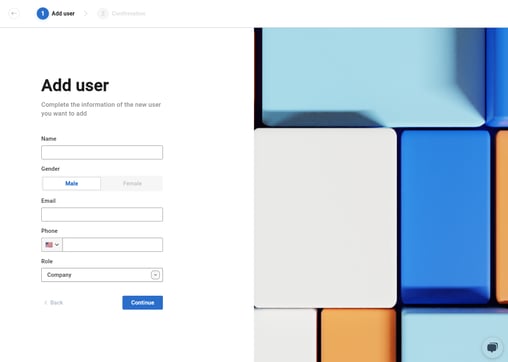
Caption: Add user screen to input personal data and assign a role.
With this section, you can easily manage the people who have access to your Wilkins environment and ensure each person is set up with the correct permissions.