
As a Receptionist User, your main task in the app is to scan incoming documents and generate warehouse receipts quickly and accurately.
Below you’ll find exactly how the Generate Receipt feature works, what each step does, and what to check to avoid common scanning issues.
✅ How It Works
When you log in, you’ll see three main tabs at the bottom of your screen:
-
Generate receipt (this section)
-
History
-
Menu
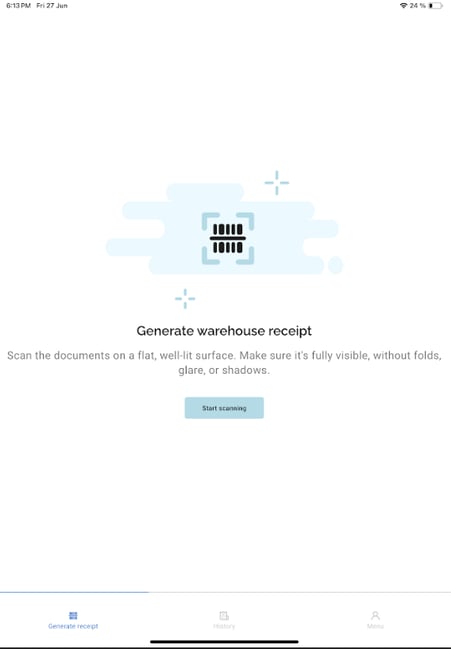
Tap Generate receipt to start scanning.
📸 Step 1 — Start Scanning
-
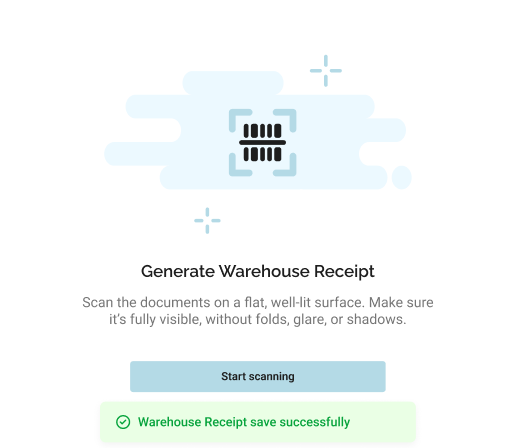
Tap Start scanning to open the camera.
-
Place the document on a flat, well-lit surface.
-
Make sure it’s fully visible — avoid folds, glare, or shadows.
-
Use the camera to take a clear picture.
-
A thumbnail preview appears in the lower-left corner to track your scans.

➕ Step 2 — Manage Multiple Pages
-
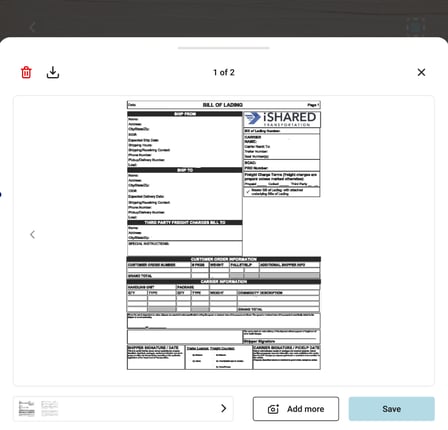
Take as many pages as needed — each is added to your preview.
-
Tap Save after each page to confirm.
-
To remove or add more pages, use the preview controls:
-
Delete, Add more, or Save the current batch.
-
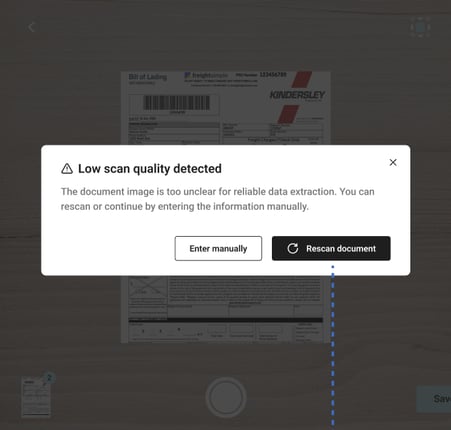
⚠️ Step 3 — Low Quality Notification
-
If the image quality is too low for OCR extraction, the app will warn you.
-
You can rescan or enter data manually.
-
Confirm the scan is sharp before saving.
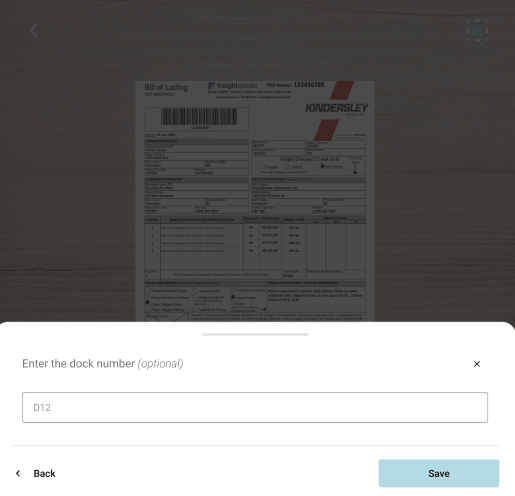
🔢 Step 4 — Confirm Tracking and Dock
-
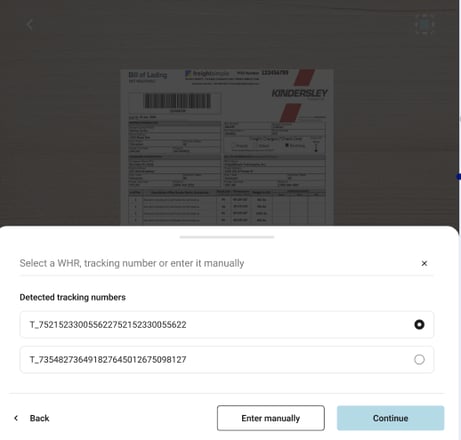
After scanning, the app shows detected tracking numbers.
-
Select the correct one, or enter it manually if needed.
-
-
Finally, you can add the dock number (optional) before finishing.
✅ Save and Sync
-
Tap Save to finish.
-
A green confirmation will appear: Warehouse Receipt save successfully.
-
The receipt will appear in the History tab with status Draft or Synced.
✔️ Tip: Always double-check the scan before saving to reduce manual corrections later.